

Appearance
Broadcasts
Broadcasts let you send approved WhatsApp template messages to large audiences, schedule sends for later, and review delivery outcomes after launch.
- Navigate to Broadcasts
- Use Create and send a broadcast when you need the full step-by-step workflow.
What broadcasts include
- Broadcast type - Standard sends or engagement sends that trigger a bot flow.
- Audience file - CSV or Excel data that defines recipients and template variables.
- Template - The approved outbound WhatsApp message format.
- Channel - The connected number that sends the message.
- Schedule - Optional date and time for later delivery.
Audience data overview
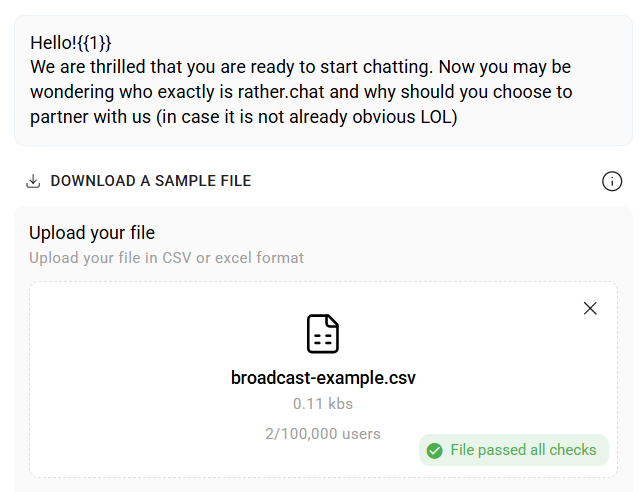
| Column | Required | Example | Notes |
|---|---|---|---|
external_id | Yes | 27234567891 | Include the country code. |
media_url | Only for media templates | https://example.com/image.jpeg | Must be publicly accessible. |
var1, var2, var3 | Only when the template uses variables | Jane | Match the approved template. |
You can send up to 100k users per broadcast.
WARNING
Remove duplicate recipient numbers and opted-out users from your audience file before upload. Duplicate and opt-out behavior should be confirmed for your company workspace before sending customer-facing campaigns.
Schedule broadcasts
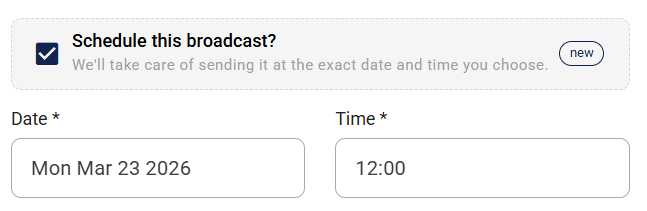
Schedule a send when you want the campaign to leave later instead of immediately.
- Turn on the scheduling option.
- Choose the required date and time.
- Review the schedule before you send.
Media limitations
Since broadcasts are sent via WhatsApp, the following limitations apply:
- Images: Up to 5 MB
- Videos: Up to 16 MB
- Documents: Up to 100 MB
- The
media_urlmust be publicly accessible via URL - Unsupported formats or oversized files may fail to send
- For full details, see the official Meta media reference: https://developers.facebook.com/docs/whatsapp/cloud-api/reference/media
Review delivery results

Insights give you a clear overview of how your broadcast messages are performing. It helps you track delivery status, identify issues, and export reports for further analysis.
Each broadcast includes detailed delivery metrics so you can quickly understand its effectiveness:
- Read - Messages opened by recipients.
- Sent - Messages handed off for delivery but not yet confirmed as delivered.
- Delivered - Messages successfully delivered to users.
- Failed - Messages that could not be delivered.
Actions
Click the dropdown to access the following options:
- Preview Broadcast - View message details and see why some messages failed. Filter by Failed to quickly find issues.
- Failed messages are usually linked to error codes provided by Meta. Start with Understand message statuses, then use Meta's error-code documentation when you need the technical source.
- Download Data - Download a full report of your broadcast anytime for further analysis.
For the full sending workflow, use Create and send a broadcast.