

Appearance
View Power BI reports
Power BI reports bring your company's reporting into rather.chat. Open reports from the Dashboard, choose between available reports, and use fullscreen for a larger view.
Before you start
- Sign in to rather.chat and select the company whose reports you want to view.
- Admins can open the Power BI tab. Managers can also open it when their effective reporting permission is enabled.
- Report viewing must be enabled for your company and plan, and a report must be available.
You view reports using your rather.chat account. You do not need to sign in to Microsoft to open them inside the platform.
Open a report
- Open Dashboard.
- Select the Power BI tab.
- Wait for Fetching your Power BI reports, please wait... to finish.
- The first available report opens automatically.
An example report in the Power BI tab is shown below. Your company's report names, content, and available reports may differ.
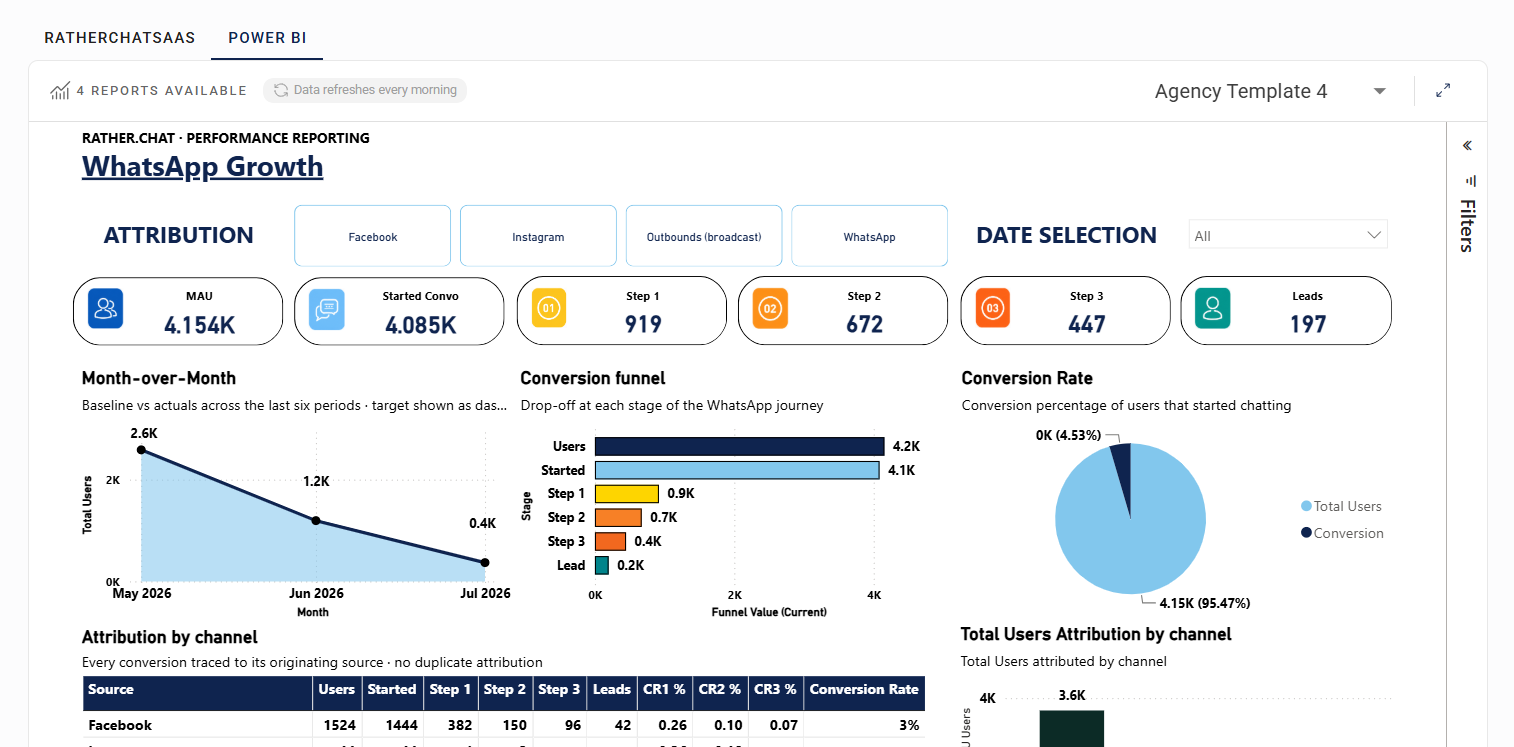
- If your company has more than one report, the Select dropdown will appear so you can choose the report you'd like to view.
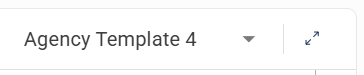
Reports belong to the selected company. When you switch companies, the previous report closes and the platform loads the new company's available reports.
Explore the report
Use the report's page navigation and filters where available. The pages, charts, and filtering options depend on the report prepared for your company.
Use the page navigator at the bottom of the report to switch between its pages. Select a page tab, such as Overall Funnel or Engagement in the example below. Your report may have different page names.
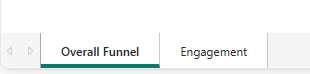
The viewer lets you interact with a report; it does not let you edit its design. Contact the rather.chat team if you need changes to the report or the information it includes.
Use fullscreen
- Select the expand icon beside Select report. Its tooltip reads View report in fullscreen.
- Continue using the report or choose another report from the selector while in fullscreen.
- Press Escape or select the minimize icon to exit fullscreen.
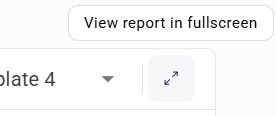
If your browser does not support fullscreen, the button is disabled. You can still use the report in the normal Dashboard view.
Request reporting
Your company's reporting workspace is set up automatically when you complete the Connect to WhatsApp action. Reports become available after the rather.chat team prepares and publishes them and reporting access is enabled for your company.
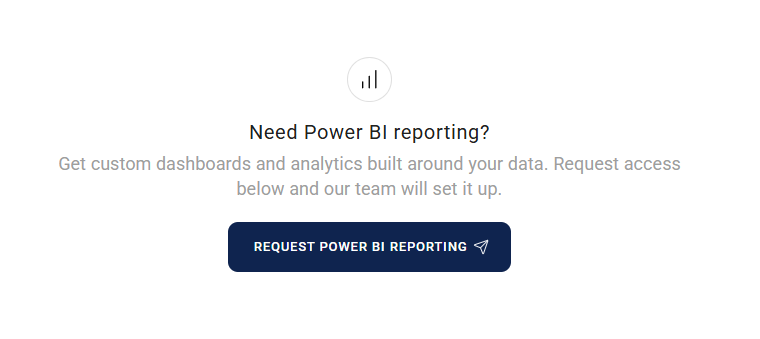
Only company Admins can request reporting. Managers should ask their company admin to submit a request. If you are an admin and report access is not enabled or no reports are available, you may see Need Power BI reporting?
- Check that you have selected the correct company.
- Select Request Power BI reporting.
- Wait for the confirmation that your request has been sent.
The rather.chat team reviews the request and your plan's reporting entitlement. Sending a request does not immediately make reports available.
INFO
A company can submit another request after 48 hours. This applies across all admins in that company. If someone has already requested reporting, the page shows when another request can be sent. The 48-hour interval is a request limit, not a report delivery estimate.
When will a new report appear?
The team needs to prepare and publish the report for your company first. For companies with automated reporting enabled, the platform checks for newly published reports at 07:30 and 15:30 South African time each day. Refresh the page after a check to load the available report list.
Some reports may require the team's review before they become visible. If the team has confirmed that your report is ready but it is still missing, contact support.
TIP
These checks make newly published reports available in rather.chat. They do not describe how often the data inside a report refreshes. Ask the team about the data refresh schedule for your report.
Troubleshooting
I cannot see the Power BI tab
Check that you have selected the correct company. You must be an Admin, or a Manager with reporting permission enabled. If your access was recently changed, sign out and sign in again. Contact support if the tab is still missing.
No reports are available
The message No Power BI reports are currently available for this company. can mean that reporting access is not yet enabled or that your reports are still being prepared or reviewed.
Check the selected company, then use Request Power BI reporting if it is available. If a request was already sent, use the displayed next-request time or contact support for an update.
A report fails to load
- Wait a few seconds for the report to finish loading.
- Check your internet connection and refresh the page once.
- If the error continues, contact support with the company name, report name, exact error message, and approximate date and time.
The report session could not be renewed
The platform normally keeps an open report session renewed automatically. If a renewal warning appears, the current report may remain usable briefly. Refresh the page to reopen it. Contact support if the warning returns or the report stops loading.