

Appearance
Sign up
Use this guide to create your rather.chat account, verify your email address, and either join an existing company workspace or create a new company.
- Navigate to Sign up
Before you start
- Required access: any invited or new user.
- You need access to the email inbox you will use for sign-up.
- Estimated time: about 5 minutes.
What happens after verification
| Situation | What happens next |
|---|---|
| Your email already has a company invite | Your account is verified and you enter the invited company workspace |
| Your email does not have a company invite | Your account is verified and you continue to create a company |
Steps
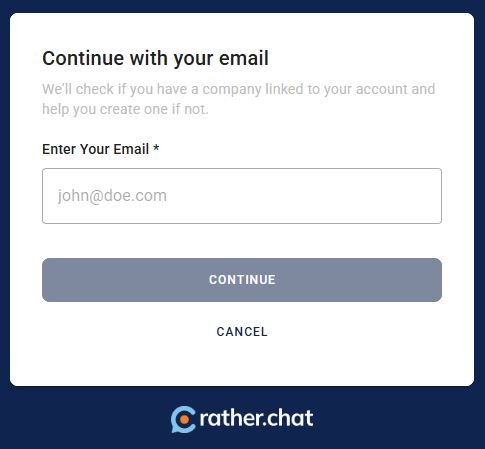
1. Continue with your email
- Enter your email address.
- Click Continue.
The platform checks whether the email already belongs to an existing user and whether there is a company invite linked to it.
2. Create your account
Complete the account form:
- Full Name
- Password
- Confirm Password
Then click Verify Account.
Account requirements:
- Enter at least a first name and a surname.
- The surname must contain more than 3 characters.
- Passwords must be at least 8 characters long.
- The confirmation password must match exactly.
INFO
The sign-up form currently checks password length and confirmation match. If your organization uses an internal password standard, choose a stronger password even when the form accepts the minimum.
3. Wait for the setup checks
The platform briefly shows progress while it:
- Creates your account.
- Checks whether a company is already connected.
- Sends the verification email.
If a setup step fails, retry from the progress overlay before restarting the whole process.
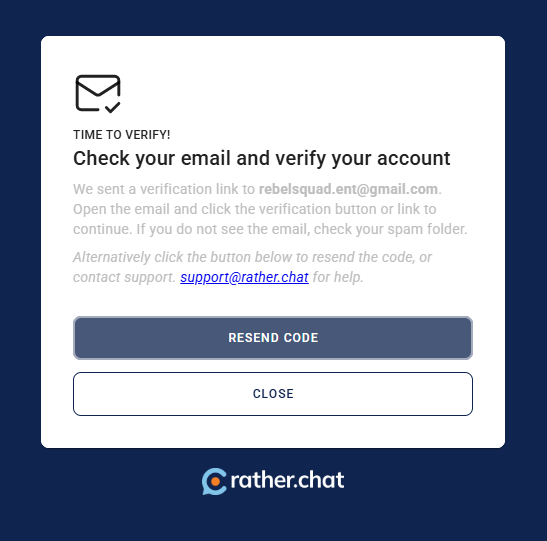
4. Verify your email
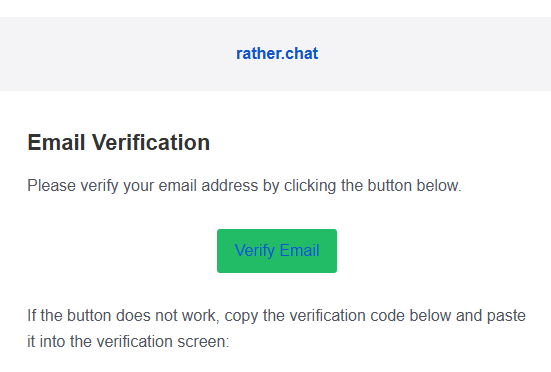
Open the verification email and click Verify Email.
Important:
- Verification happens through an email link.
- You do not enter a manual code in the platform.
- If the email is missing, check spam or junk before resending it.
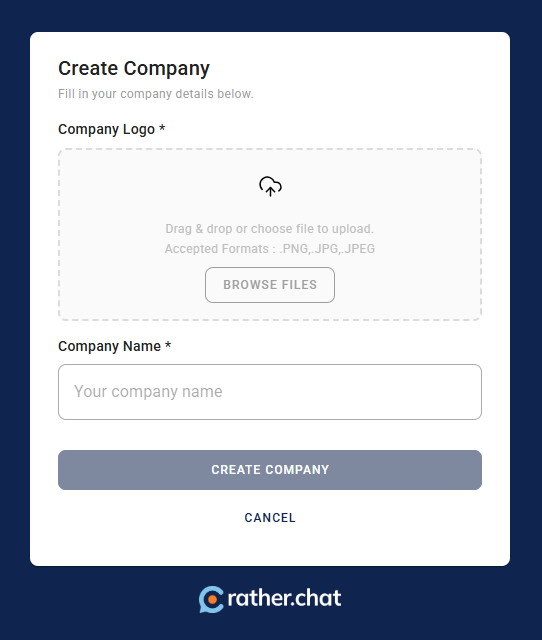
5. Create a company when required
If your email is not linked to an existing invite, the platform asks you to create a company after verification.
Complete:
- Company Logo
- Company Name
Then click Create Company.
Company creation requirements:
- A company logo is required before the button becomes available.
- A company name is required.
- The company name must contain at least 3 characters.
How to know it worked
- Your account is verified.
- You are signed in automatically.
- You either land in the invited company workspace or finish company creation.
- You can continue to Connect to WhatsApp.
If something goes wrong
| Problem | What it means | What to do |
|---|---|---|
| User with that email already exists | The email is already registered | Use the login page or reset the password |
| Verification email does not arrive | Delivery may be delayed or filtered | Check spam or junk, then use the resend verification email option |
| Verification link fails | The link may be expired or older than the latest email | Open the newest verification email or request a fresh message |
| You expected an invite but were asked to create a company | The invite may not match the email used for sign-up | Confirm the invited email address and contact your admin if needed |