

Appearance
Conversions API manual setup
Use this guide to connect the Meta assets needed for Conversions API if they were not shared during your original WhatsApp Embedded Signup.
There are two ways to complete the setup:
- Connect the assets by repeating the rather.chat embedded signup flow.
- Share the assets manually through a new or existing Meta partner connection with rather.chat.
Before you start
- Required access: admin access to the correct Meta Business Portfolio.
- Confirm which WhatsApp Business Account and phone number are connected to rather.chat.
- Confirm which Facebook Page and ad account should be used for Conversions API.
- If your business already has a Pixel or Dataset, confirm which one should be shared.
- RatherChat's Meta partner business ID is
464187998983535.
Option 1: Connect your Conversions API assets using embedded signup
Use this option if you previously completed WhatsApp Embedded Signup without connecting all the assets required for Conversions API, such as your Facebook Page or ad account.
This process follows the existing Connect to WhatsApp flow and updates the assets associated with your connected channel.
Steps
- Start the Connect to WhatsApp process and complete steps 1-3.
- At Step 4: Select your business assets, select your existing WhatsApp Business Account from the dropdown menu.
- Select an existing Facebook Page and ad account, or create new ones if your business does not already have the assets it needs.
- Click Next and continue to Step 5: Enter your business information. Meta should preselect the information associated with the existing WhatsApp Business Account you selected. Review the details before continuing.
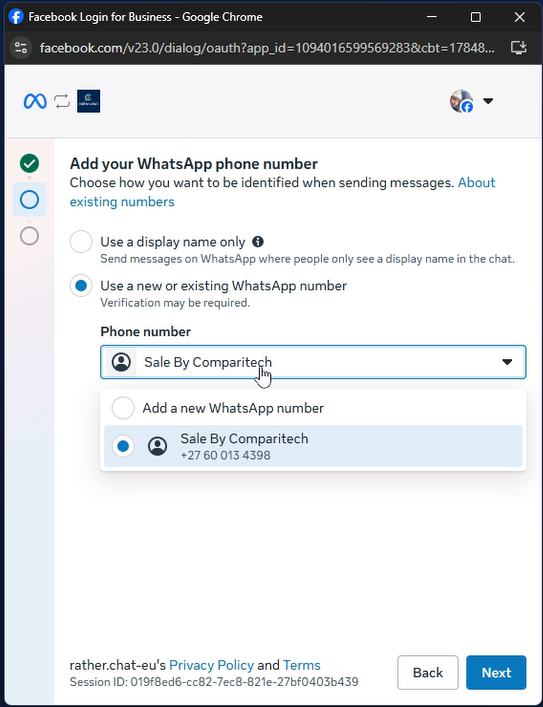
- At Step 6: Add and verify the phone number, choose Use a new or existing WhatsApp number and select the existing phone number linked to your WhatsApp Business Account from the dropdown menu.
DANGER
Do not select Add a new WhatsApp number. You must select the existing phone number already linked to the WhatsApp Business Account. Creating a new number can result in a second, unintended WhatsApp connection.
- Click Next. Meta should not request a verification code because the selected phone number was registered previously.
- Review the assets and permissions that will be shared with rather.chat, then click Confirm.
- Keep the connection window open while Meta reconnects the account.
- On the final Meta screen, review the connected assets and click Finish.
Completing this flow updates the assets associated with your existing rather.chat channel. It does not require you to create a new WhatsApp channel or register the phone number again.
How to know it worked
- You reach the rather.chat WhatsApp integration success screen.
- Your existing phone number remains connected to the same channel.
- The channel displays Assets Captured in the Conversions API column.
- Clicking Assets Captured shows the connected Business Portfolio, WhatsApp Business Account, ad account, and Facebook Page IDs.
Option 2: Share assets manually through a Meta partner connection
Use this option to share the required Meta assets with rather.chat through a new or existing partner connection.
Assets to share with rather.chat
Share the assets that belong to the WhatsApp connection you want to use for Conversions API:
- Facebook Page
- Ad account
- Pixel or Dataset, if one has already been created
- WhatsApp Business Account
INFO
The WhatsApp Business Account may already appear under the RatherChat partner's assigned assets. If it is already assigned, you do not need to assign it again. Add the other missing assets instead.
Scenario 1: rather.chat is already a partner
- Open Meta Business Settings and select the Business Portfolio that owns the assets.
- In the left-hand menu, open Users, then select Partners.
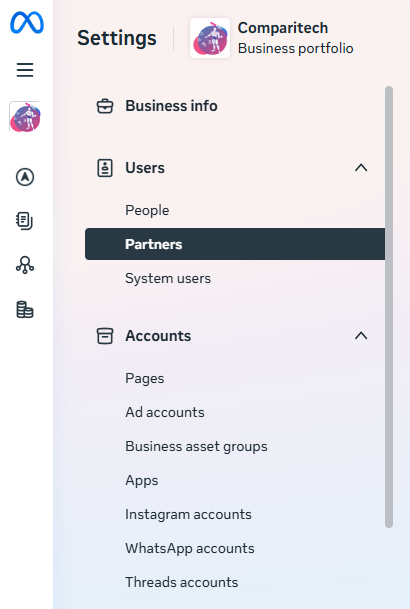
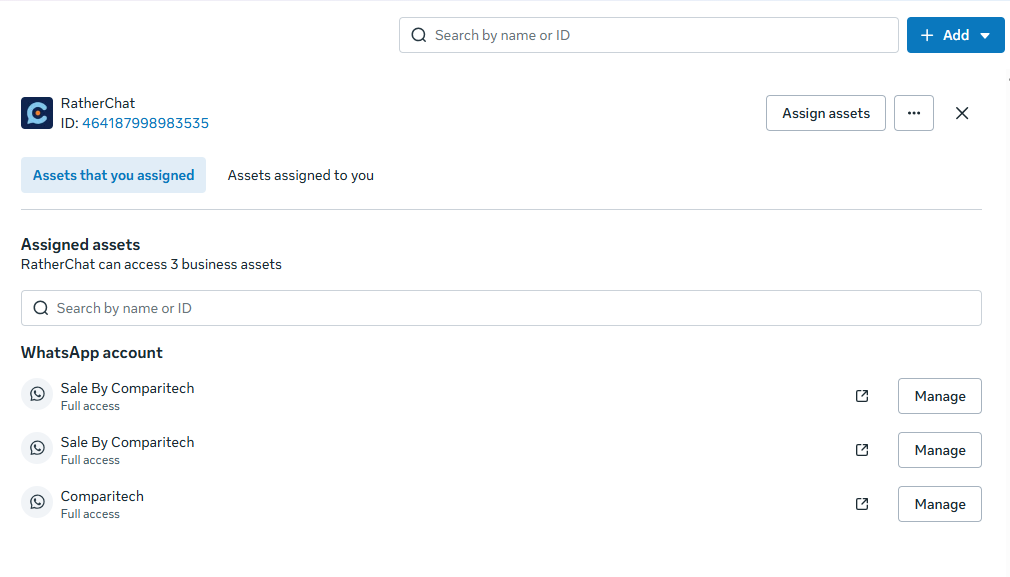
- Select the RatherChat partner connection.
- Confirm that its business ID is
464187998983535.
WARNING
Confirm the partner business ID before sharing assets. Only continue when the RatherChat partner ID is 464187998983535.
- Open the Assets that you assigned tab and review the existing assigned assets. A WhatsApp Business Account may already be listed here.
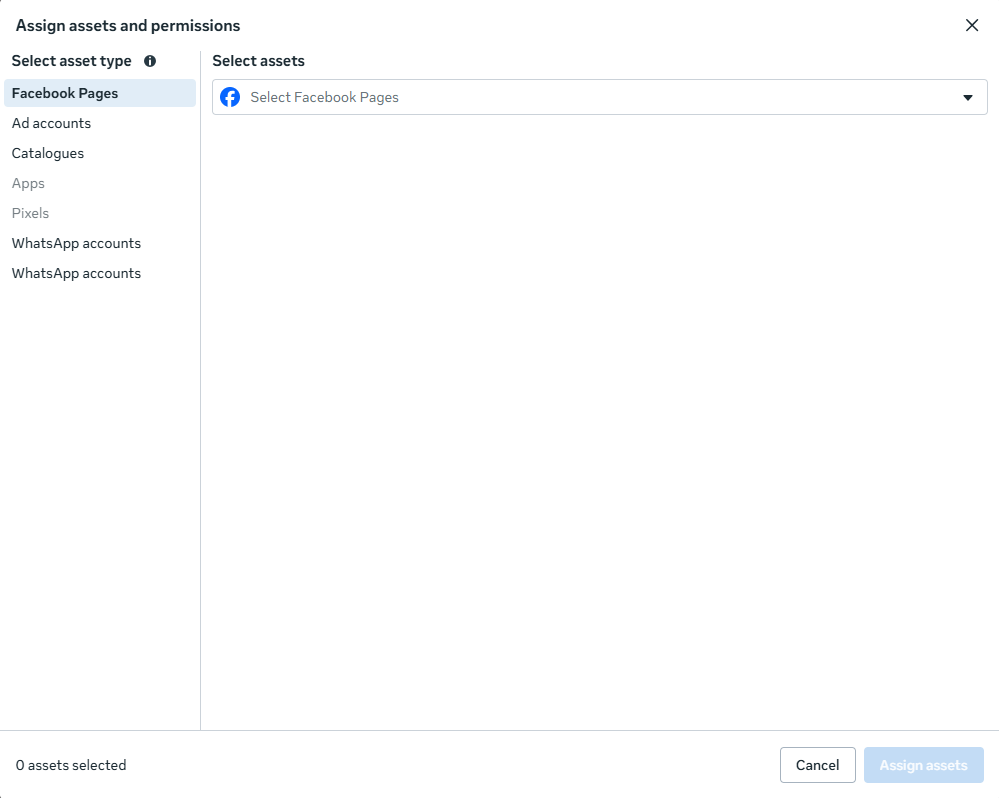
- Click Assign assets. If the button is not visible, click the three-dot menu and look for Assign assets there.
- In the Assign assets and permissions window, work through the asset types and select:
- The correct Facebook Page
- The correct ad account
- The correct Pixel or Dataset, if one already exists
- The correct WhatsApp Business Account, if it is not already assigned
- Review your selections and click the blue Assign assets button.
Scenario 2: rather.chat is not yet a partner
If RatherChat is not listed under Partners, add the partner connection before assigning assets:
- Open Meta Business Settings and select the correct Business Portfolio.
- Go to Users, then select Partners.
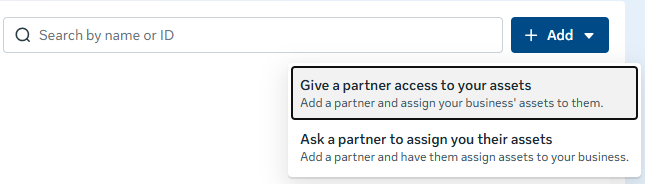
- Click Add in the top-right corner.
- Select Give a partner access to your assets.
- Enter RatherChat's partner business ID:
464187998983535.
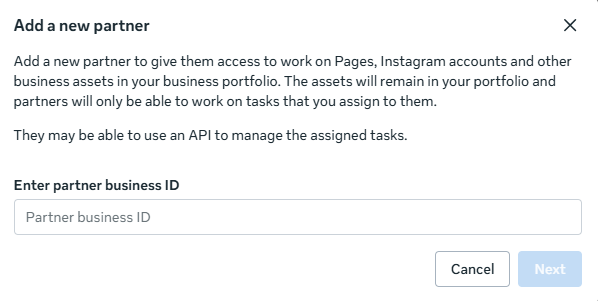
- Click Next.
- Select and assign the Facebook Page, ad account, Pixel or Dataset, and WhatsApp Business Account described in Assets to share with rather.chat.
- Review your selections and click Assign assets to finish.
How to know it worked
- RatherChat appears in the Business Portfolio's Partners list with business ID
464187998983535. - The required Facebook Page, ad account, Pixel or Dataset, and WhatsApp Business Account appear under Assets that you assigned.
- RatherChat can receive the newly assigned assets and connect them to the relevant channel as part of the Conversions API implementation.
If something goes wrong
| Problem | What to do |
|---|---|
| RatherChat is not listed under Partners | Follow Scenario 2 and add business ID 464187998983535 |
| Assign assets is not visible | Open the three-dot menu for the RatherChat partner and look for Assign assets |
| An expected Page, ad account, Pixel, Dataset, or WhatsApp account is missing | Confirm that you selected the Business Portfolio that owns the asset and that your Meta account has admin access |
| The WhatsApp Business Account is already assigned | Leave the existing assignment in place and assign only the missing assets |
| The partner ID does not match | Do not share the assets; confirm that you selected the correct RatherChat partner connection |